Nutanix - Get started with the CE Edition
Short blog about my experiences with Nutanix CE and which workarounds I needed.
4122 Words // ReadTime 18 Minutes, 44 Seconds
2026-02-08 19:00 +0100
Introduction
In November 2025, I was a guest at Nutanix Next in Darmstadt, where I met up with old colleagues and wanted to take a look at what Nutanix had to offer. Visitors were kindly given the opportunity to obtain certification on the spot, which I naturally took advantage of.
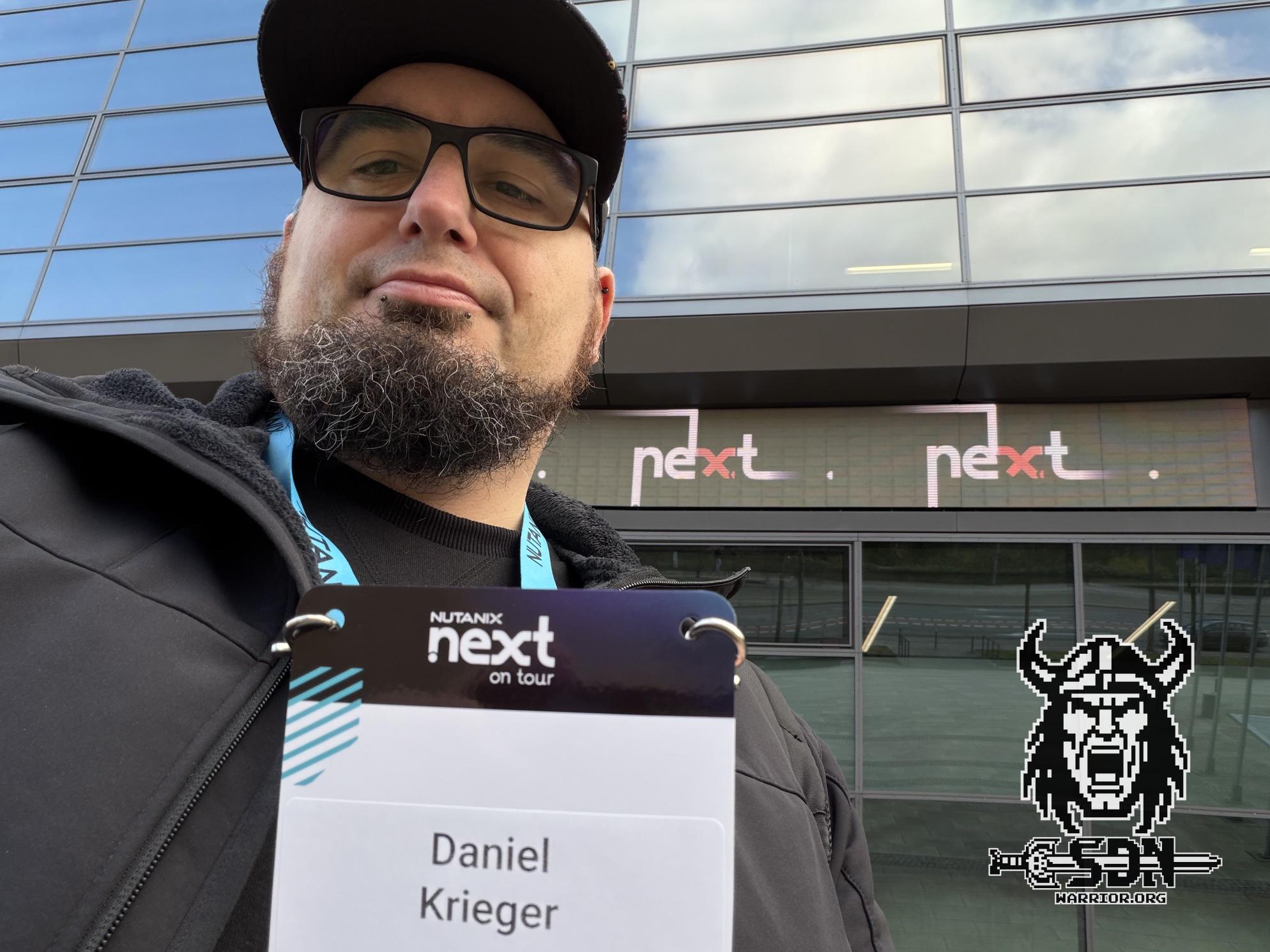
Yes, this is my happy face
Having worked with VMware for over 20 years, I was naturally skeptical about what Nutanix could do, and what can I say, the differences are perhaps less than I thought. You could also say same, same but different—at least when it comes to the core of virtualization. Nutanix is based on KVM, which is rock solid and which I have been running in my home lab for ages in the form of Unraid. When it comes to storage, Nutanix takes a different approach and primarily relies on HCI and its own storage solution.
In any case, NEXT was decisive enough for me to take another closer look at Nutanix, because after all, there is a Community Edition that should cover most of the features. I would have liked to test the “real” Nutanix version, but unfortunately that’s not easily possible. However, I am in talks with one or two Nutanix employees and perhaps a way can be found. That’s why this isn’t a feature comparison, because it would be like comparing apples and oranges if I were to compare the Community Edition of Nutanix with VCF9.
After all, there is a Community Edition of Nutanix, but VMware currently only offers ESXi8 Free. Personally, I would welcome a Community Edition from VMware. I know you can get licenses for VCF through VMUG Advantage and by passing an exam, but it’s not the same. Phew, that was quite a long introduction, but let’s get started.
Getting started
At first, it wasn’t that easy to find the CE Edition. You need a free Nutanix account, and then you can download the CE here.
Of course, the CE version has a few limitations, and of course I had to implement a few workarounds with my hardware to ensure that everything runs smoothly. But we are already used to that here, and it should come as no surprise to readers.
One limitation, for example, is the cluster size; Nutanix CE can only be deployed as a one, three, or four node cluster. Larger clusters or even two node clusters are reserved for the full version. The same applies to stretched clusters. In addition, the CE version only comes with AHV, which I personally don’t find problematic; if I want to use ESX, I deploy VCF or VVF. I first tried Nutanix as a nested deployment, which worked fine, but the storage was really slow. That’s not Nutanix’s fault, though; it’s the same with a nested vSAN cluster.
If you want to install the CE Edition bare metal, you unfortunately have to use a specific version of Rufus, otherwise Nutanix will not boot from a USB stick. I don’t know exactly why this is the case. I tried Mac alternatives because I no longer have a Windows PC, but it didn’t work. In the end, I got the image to run in a Windows 11 VM with USB passthrough and Rufus 3.21. Rufus 3.2.2 or newer do not work.
Another limitation of the CE Edition is that you must be online and have a Nutanix account. This must be entered after creating the cluster. Nutanix CE cannot be used without free online activation.
Hardware
To install Nutanix, you need at least three hard drives: one for booting, one for the CVM (hot tier must be flash), and one for cold data. I used NVMe storage for all three drives. I used three MS-01s with Intel i9 13th generation CPUs, 96 GB RAM, and 1x1TB and 2x2TB storage. Before the question arises, unfortunately I cannot use all 20 cores of the i9. Nutanix is the same as ESX in this respect; only the P+E cores without HT work. That makes a total of 14 vCPUs. I use 2x10Gb/s for the network, but less is also possible. However, you should not expect miracles in terms of performance if the network connection is less than 10Gb/s.

MS-01
Network
While we’re on the subject of networks, Nutanix uses the 192.168.5.0/24 network internally for communication between the hypervisor and CVM. I haven’t found a way to change this (yet). If you have important external services such as DNS or NTP in this network area, it becomes difficult. Furthermore, the CVM and the hypervisor host must be in the same L2 network, and unfortunately, the CE Edition does not support VLANs for this. I managed to get my AHV host and my CVM to have a management VLAN, but the VLAN of the CVM is not persistent. After each reboot, the VLAN tag disappeared again. The problem seems to be that the VLAN tag settings are not written to cvm_config.json. I tried to do this manually, but I don’t seem to be using the correct syntax. I need to test this further, and if I figure out how to do it, I will update this article. Another thing that may seem unusual to VMware users is that Nutanix initially uses all network adapters after installation, and this cannot be configured during installation.
Installation
The installation is so simple and straightforward that I briefly considered not writing anything at all. But that’s mainly because there’s virtually nothing to configure.

Installation
What you see in this screenshot is exactly what you can configure in the CE version. I use my smallest disk as the boot disk (H) and both 2TB NVMes as data or CVM disks. The installer usually selects the appropriate option. If you have different disk sizes (all flash), I would select the largest one as the data disk. Ideally, the cluster should be uniformly equipped, but this is not a must.
CVM - What is that anyway?
I should perhaps add a brief comment on this. One of my biggest criticisms was the complicated structure—why is there such a thing as a CVM, and why can’t it be like vSAN? I had a very good conversation about this topic with Bas Raayman at Next and if anyone can explain it, it’s him.
I hope I can summarize everything briefly. But on the one hand, the issue is historical. Nutanix started with ESXi as its hypervisor, and it was simply not allowed to bring the functionalities into the kernel via its own extensions. On the other hand, it also makes the platform hypervisor agnostic. Among other things, the CVM serves as a storage controller, provides IO paths, contains the cluster logic, and can provide a file server and certainly much more. The big advantage is that it is flexible. Nutanix runs on AHV, VMware, and the cloud. The CVM code base is always the same. Furthermore, VM metadata is stored in the CVM. This means I can easily migrate VMs between hypervisors. But where there is light, there is also shadow. Of course, this comes at the cost of some latency. According to Bas, it’s hardly noticeable, but if I need to squeeze out every last bit of latency, then ESX is probably faster. The second problem, which I consider much more significant, is that users can log in to the CVM at any time and, in the case of the CE Edition, must do so. With a lot of root privileges comes a lot of responsibility. If you shut down the CVM or break it, the storage node will also fail. Overall, however, the advantages outweigh the disadvantages if you want to be hypervisor agnostic. And I must admit that at first I didn’t understand the necessity of CVM and found the whole thing unnecessarily complicated. However, my opinion has actually changed in the meantime and I can now appreciate the charm of this solution.
Regardless, I will continue to favor NFS/iSCSI as the primary storage in my home lab wherever possible. Maybe I’m just a little stubborn and old-fashioned in that regard.
Creating the cluster
After installing all three hosts, I was faced with the problem that my servers were not accessible. Since it is not officially possible to configure a VLAN for management, I configured my switch ports to untagged. However, the reason why the servers were not accessible was not because of this, but because my first adapter on the MS-01 is also used for the integrated IPMI. By default, Nutanix builds an active/standby bond with all adapters and prefers ETH0 as the active adapter. Even if it only has 1 Gb/s. Since my IPMI also does not support VLAN tags and is located in a different LAN than my Nutanix cluster, I had a problem.
The solution is obvious: reconfigure the open vswitch. But how?
Changing the OVS Switch uplinks
Now this is where the CVM comes into play, but how can you access the CVM if you can’t reach it via the network? Thanks to IPMI, I have console access to my server, and I mentioned the 192.168.5.0/24 network earlier. Each CVM has the same internal IP, so you can jump to the CVM via SSH to 192.168.5.2. Each AHV host has 192.168.5.1. Each CVM has two interfaces. The external interface is assigned to the OVS on the default bridge br0, and the internal interface runs via a Linux bridge virbr0. To log in to the AHV host, you need the root user, and the CVM must be addressed with the user nutanix. Both users have the default password nutanix/4u.
After logging in, you can change the uplinks of the default br0 using the following command. In my case, I only want to use the two 10 Gb/s interfaces of my MS-01.
manage_ovs --bridge_name br0 --interfaces eth2,eth3 --bond_mode active-backup update_uplinks
After this change, the host and CVM are now accessible from my admin desktop. This must now also be done with the other two hosts.
Workaround due to identical UUIDs of the hosts
This brings me to the first real problem with the installation, and I noticed the error very late in the process. Unfortunately, all my MS-01 servers are assigned the same UUID. By default, the default source for the UUID is smbios, but all of my MS-01s have the same UUID. This should not happen and is clearly due to my hardware. I cannot say at this point whether this also happens with an MS-A2, but at least all 6 of my MS01s are affected.
The annoying thing is that I only notice this when a VM needs to be migrated. I can create a cluster without any problems, execute the lifecycle, and even Prism Central deployment works fine, but as soon as a VM needs to be migrated, the problems start.
I received the following error message.
Operation failed: internal error: Attempt to migrate guest to the same host 03000200-0400-0500-0006-000700080009: 61
And if you know a little bit about this, you’ll notice that the reason is already stated in the error message. All hosts have the UUID 03000200-0400-0500-0006-000700080009. As a result, Nutanix assumes that the VM should be migrated to the same host where it is running and therefore aborts the process.
If you are logged in as root on the AHV, you can use the following command to display the UUID.
cat /sys/class/dmi/id/product_uuid
If this is the same on all hosts, then congratulations, the following workaround is necessary. First, we generate fresh UUIDs that are unique. This can be done with the following command on the AHV. Three can be generated at once.
uuidgen -r
It’s best to save them, because unfortunately the fix isn’t 100% permanent, but more on that later. Next, the following file must be modified. /etc/libvirt/libvirtd.conf This can be done with nano or vi. Since I am more comfortable with nano, it is always my tool of choice, if available. The fix is quite simple: a line needs to be commented out relatively far down, and the UUID needs to be replaced with a valid one.
# NB This default all-zeros UUID will not work. Replace
# it with the output of the 'uuidgen' command and then
# uncomment this entry
host_uuid = "c39808fa-8255-4c46-84ee-84e3ad5d16f0"
#host_uuid_source = "smbios"
Finally, restart the libvirt service and we are ready to go.
systemctl restart libvirtd
Creating the cluster - now really!
Once network connectivity has been established and our UUIDs are once again unique, the cluster can be created. Since there is no GUI available for us to use at this point, this must also be done manually via the CLI. Don’t worry, it’s quick and painless. To do this, you must log in to any CVM via nutanix User. This should now also be possible via the configured IP from the installer.
The cluster creation process is simple and can be done quickly using the following CLI command.
cluster -s cvm1_ip_addr,cvm2_ip_addr,... create
After a certain amount of time, the cluster status can be checked with this command.
cluster status
Additional settings via the CLI.
Define the cluster name.
ncli cluster edit-params new-name=cluster_name
Configure a name server for the cluster.
ncli cluster add-to-name-servers servers=public_name_server_ip_address
Configure an external IP address for the cluster.
(This parameter is required for a CE cluster.)
ncli cluster set-external-ip-address external-ip-address=cluster_ip_address
Add an NTP server IP address to the list of NTP servers.
ncli cluster add-to-ntp-servers servers=NTP_server_ip_address
After completing all these steps, you should now be able to log in to the Nutanix cluster via the ClusterIP.
With Prism Elements, Nutanix provides a web interface that can be accessed via any host and via the cluster IP port 9440. This means that it is not necessarily required to deploy Prism Central. If you intend to use Nutanix as a pure hypervisor without Nutanix Flow and other services, Prism Elements is entirely sufficient. If you want to use different clusters or Nutanix Flow (which I am very interested in), then Prism Central is a must. It can be easily deployed as a VM in the cluster via Prism Element. I will describe this further down in the article.

Prism Element
When logging in for the first time at the Prism Elemet GUI with the admin user and the password nutanix/4u, this must be changed. And while we’re on the subject of changing passwords, this should also be done for all other accounts. To change the passwords for all accounts, there is a KB article from Nutanix that describes how to do this via the CVM. I strongly recommend changing all default accounts.
Default Paasword changes
The following three commands help to change the password for the root, admin, and nutanix accounts at the AHV host level and on all the hosts in the cluster. Do not modify the command. It will ask for the new password twice and will not display it. This can run from any CVM in the cluster.
Change CVM local account
nutanix
sudo passwd nutanix
Change AHV local accounts
root
echo -e "CHANGING ALL AHV HOST ROOT PASSWORDS.\nPlease input new password: "; read -rs password1; echo "Confirm new password: "; read -rs password2; if [ "$password1" == "$password2" ]; then for host in $(hostips); do echo Host $host; echo $password1 | ssh root@$host "passwd --stdin root"; done; else echo "The passwords do not match"; fi
admin
echo -e "CHANGING ALL AHV HOST ADMIN PASSWORDS.\nPlease input new password: "; read -rs password1; echo "Confirm new password: "; read -rs password2; if [ "$password1" == "$password2" ]; then for host in $(hostips); do echo Host $host; echo $password1 | ssh root@$host "passwd --stdin admin"; done; else echo "The passwords do not match"; fi
nutanix
echo -e "CHANGING ALL AHV HOST NUTANIX PASSWORDS.\nPlease input new password: "; read -rs password1; echo "Confirm new password: "; read -rs password2; if [ "$password1" == "$password2" ]; then for host in $(hostips); do echo Host $host; echo $password1 | ssh root@$host "passwd --stdin nutanix"; done; else echo "The passwords do not match"; fi
Additional settings
I switched my default network switch vs0 to jumbo frames. This can be done via the dropdown menu (in Prism Element) under Settings -> Network Configuration -> Virtual Switch -> vs0 and the Edit icon. Here, the bond and uplinks can also be adjusted.

vs0 network settings
Nutanix offers two options: Standard or Quick. In Standard mode, the hosts are put into maintenance mode beforehand; in Quick mode, the changes are implemented immediately. If something is wrong with the physical configuration, the workload would be offline as a result. Nutanix recommends Standard mode here, as adjusting the network also affects storage traffic. This always runs via the vs0 switch. If you have more than two adapters, you can also separate the traffic via an additional switch (alternatively, you can configure a bond without failover and separate traffic with two network types).
In addition, under Settings -> SSL Certificate, I replaced the Prism Element certificate with my own CA from my root CA. Here, all IPs and FQDNs of all cluster nodes and the cluster VIP must be entered under SAN. I also switched the UI to dark mode and English. This can be done under Settings -> UI Settings and Language Settings.
Lifecycle
The lifecycle can be managed via Prism Element or Prism Central. Prism Central has its own lifecycle independent of Prism Element. Nutanix CE comes in AOS version 6.9.1. Currently, the maximum upgrade available via Lifecycle is to AOS version 7.3.1.2.
Deploying Nutanix Prism
To deploy Prism Central, I first created a new storage container. A storage container is a logical construct to which I can apply policies and where I can create my vDisks for VMs. It is not a volume or LUN. Each storage container can have different policies and therefore behave differently, but all storage containers run on the same storage pool (in my lab, I only have one storage pool consisting of the resources of the three servers).
To create the storage container, I switch to Storage via the dropdown menu and create a new container called Workload. Compression and an error tolerance of 1N/1D are set by default. This means that 1 node from the cluster can fail. I could also set the advertised capacity or reserve capacity. I leave everything at default here. Unfortunately, erasure coding does not work because I would need at least 4 hosts for that. It’s a sad, because vSAN ESA is a little more flexible here, allowing me to use Raid 5 erasure coding with as few as 3 hosts.

Storage Container
To deploy Prism Central, simply click on the Nutanx Prism Element Dashboard (top left) and select “Deploy New Prism Central.” The dialog box will display all compatible versions, which you can then download. I opted for the latest version. I deployed Prism Central in the small form factor because I want to use Nutanix Flow later, and that doesn’t work with extra-small. Using Create Network, I created a new VLAN network on the default vSwitch vs0. This VLAN must be routed and must be able to communicate with the CVMs and the AHV server. It must also be present on the physical switches. The other settings are very self-explanatory. IP, gateway IP, DNS, NTP, and storage container should be known and available. I decided not to use an HA deployment due to the resources required. Finally, press Deploy and then it’s time for 1-2 coffees, because the installation can take a good 30-40 minutes.
Once Prism Central has been successfully deployed, the cluster still needs to be registered. This is done via Prism Element in the same place where the deployment was started. I will describe the rest of the Prism Central setup and the post-setup steps in a separate article—sometime in the future.
Safely shut down the environment and restart it.
Since I do not have my lab environments running continuously, I shut down my environments regularly, and as with VCF, this must be done in a fixed order.
- Shutting down all workload VMs via Prism Central or Elements.
- Log in to Prism Central via SSH with the nutanix user and enter cluster stop.
- Wait until the message “Success” appears. You can check the status using cluster status. Even if Prism Central is not a clustered installation, this is the safest option.
- Shut down Prism Central with sudo shutdown now.
- Log in to Prism Element and wait until Prism Central VM has shut down.
- Log in via SSH and the nutanix user on any CMV and execute cluster stop.
- Wait until the message “Success” appears. You can check the status using cluster status.
- Log in to all CVMs via SSH and nutanix user and shut them down with sudo shutdown now
- Log in to all AHV servers via SSH and root
- Check with virsh list whether any VMs are still running
- Once all VMs have been stopped, shut down each AHV host with shutdown now
Starting the cluster is done in exactly the opposite order. Instead of cluster stop, cluster start must be entered. Simply booting up the Prism Central VM is not enough; here too, the cluster must be started explicitly with cluster start.
Summary
At first glance, a lot of things are different from VMware. But what I particularly like, and haven’t mentioned in this article yet, is that as a home lab user, you get a really well-rounded and great software package for free. The CE also includes the Kubernetes Engine and Flow, which is essentially Nutanix’s alternative to NSX and VKS. Overall, I really liked how easy it was to install Flow or Move (the HCX alternative) via a kind of app store.
I have to admit that the installation process wasn’t exactly easy. In this article, I’ve only written down the results of several days of trying and searching for the problem. Nutanix can’t do anything about the UUID problem, but I find it difficult to understand why the AHV installation process doesn’t simply support VLANs like ESX does. However, I also know that these are problems with the CE Edition and do not affect Nutanix Fusion.
But it’s not like you’re faced with unsolvable problems. The Nutanix forum is full of solutions and help, you just have to find it. It also doesn’t hurt to be familiar with KVM and Open vSwitch. I have experience with both thanks to my work with Proxmox and Unraid.
The fact that you need three hard drives could also be an obstacle. I wouldn’t have been able to get Nutanix to run on a Nuc. Maybe it’s possible to boot from a USB stick, I’ll have to test that. Fortunately, nested deployment is also an option if you can live with the lower performance of the storage.
In the future, I will write more articles about my small test cluster because I definitely want to try Move and Flow. I hope that anyone who was hoping I would write a scathing review isn’t too disappointed, but to be fair, I can only compare free software with free software, and VMware would currently come up short. I’m curious to see how this topic develops and what else I will write about it.